
If you forgot your n8n instance password or never received the original credentials email, you can reset it quickly from your n8n Clouds dashboard — no support ticket needed.
This guide walks you through both available methods.
Method 1: Reset via n8n Clouds Dashboard (Recommended)
Use this method when you are logged in to your n8n Clouds account.
Step 1 — Open Your Instance Details
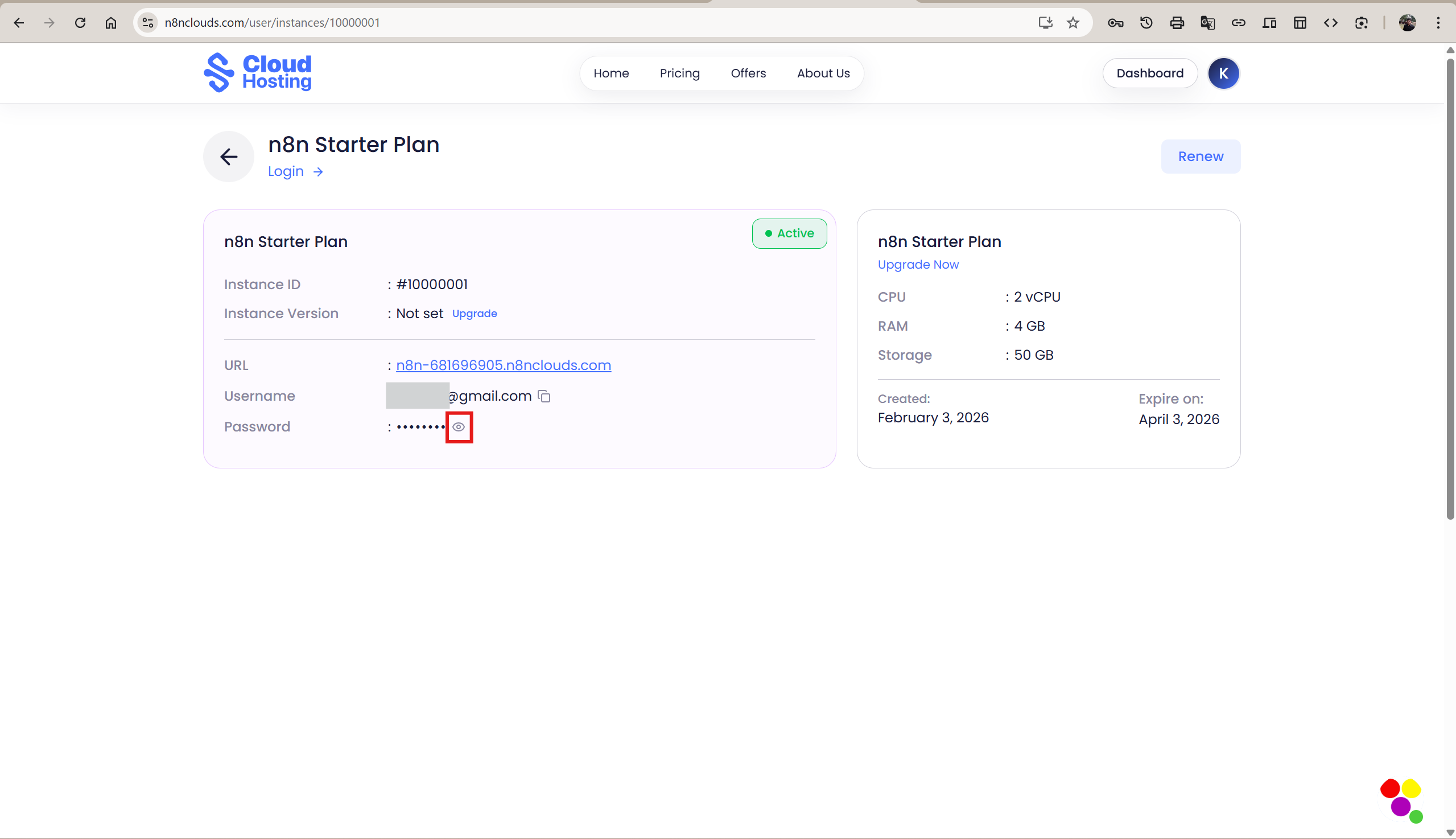
Log in to n8n Clouds and go to Dashboard → Instances. Click on the instance whose password you want to reset.
On the Instance Details page, locate the Password row. Click the eye icon next to the password to open the credentials panel.
Step 2 — Click "Reset Password"
A dialog will appear explaining that your n8n instance credentials were originally sent to your registered email. If you didn't receive them, or need a fresh password, click Reset Password.
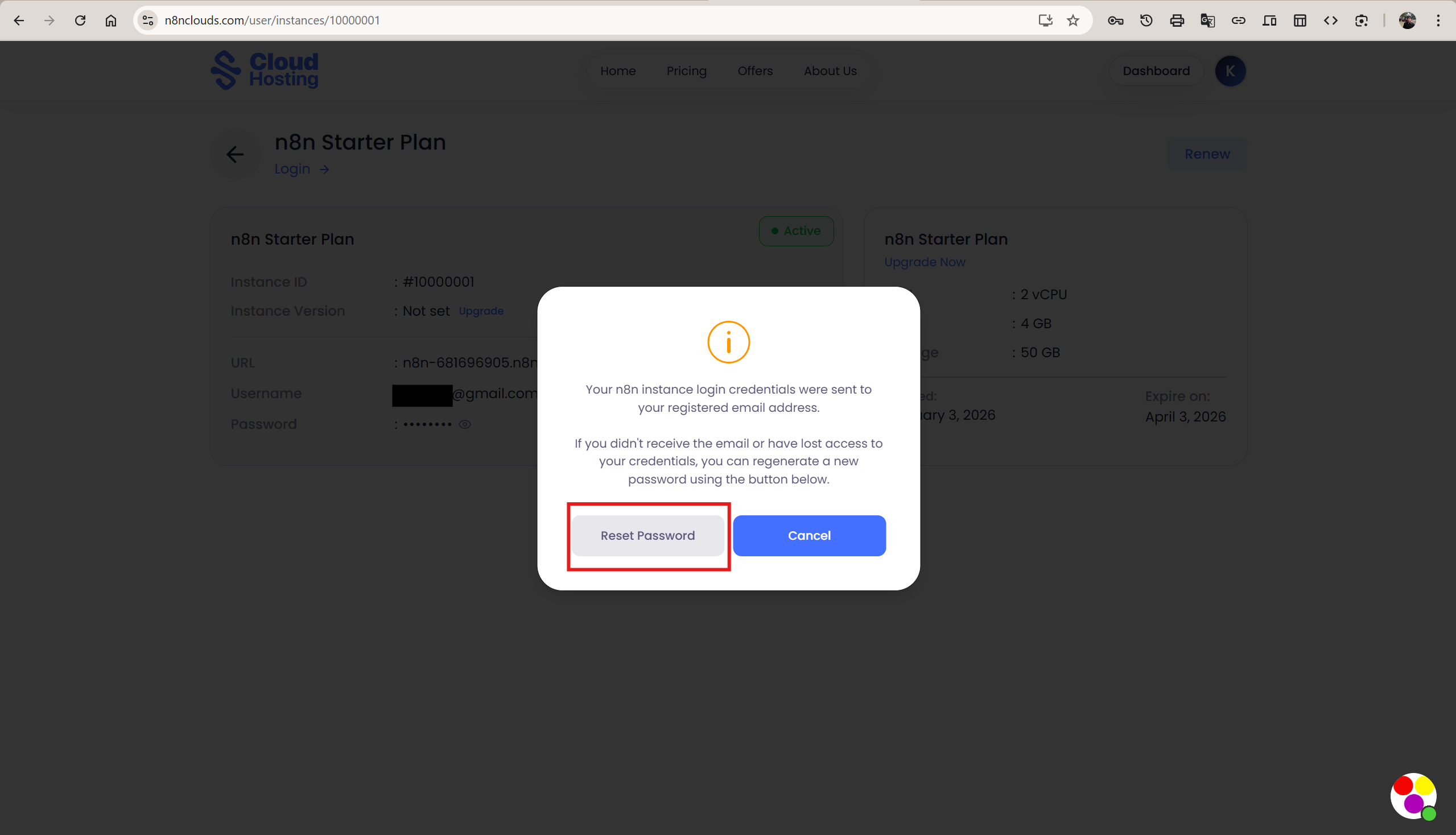
Heads up: Clicking Reset Password immediately triggers a reset email to your registered email address.
Step 3 — Open the Reset Email
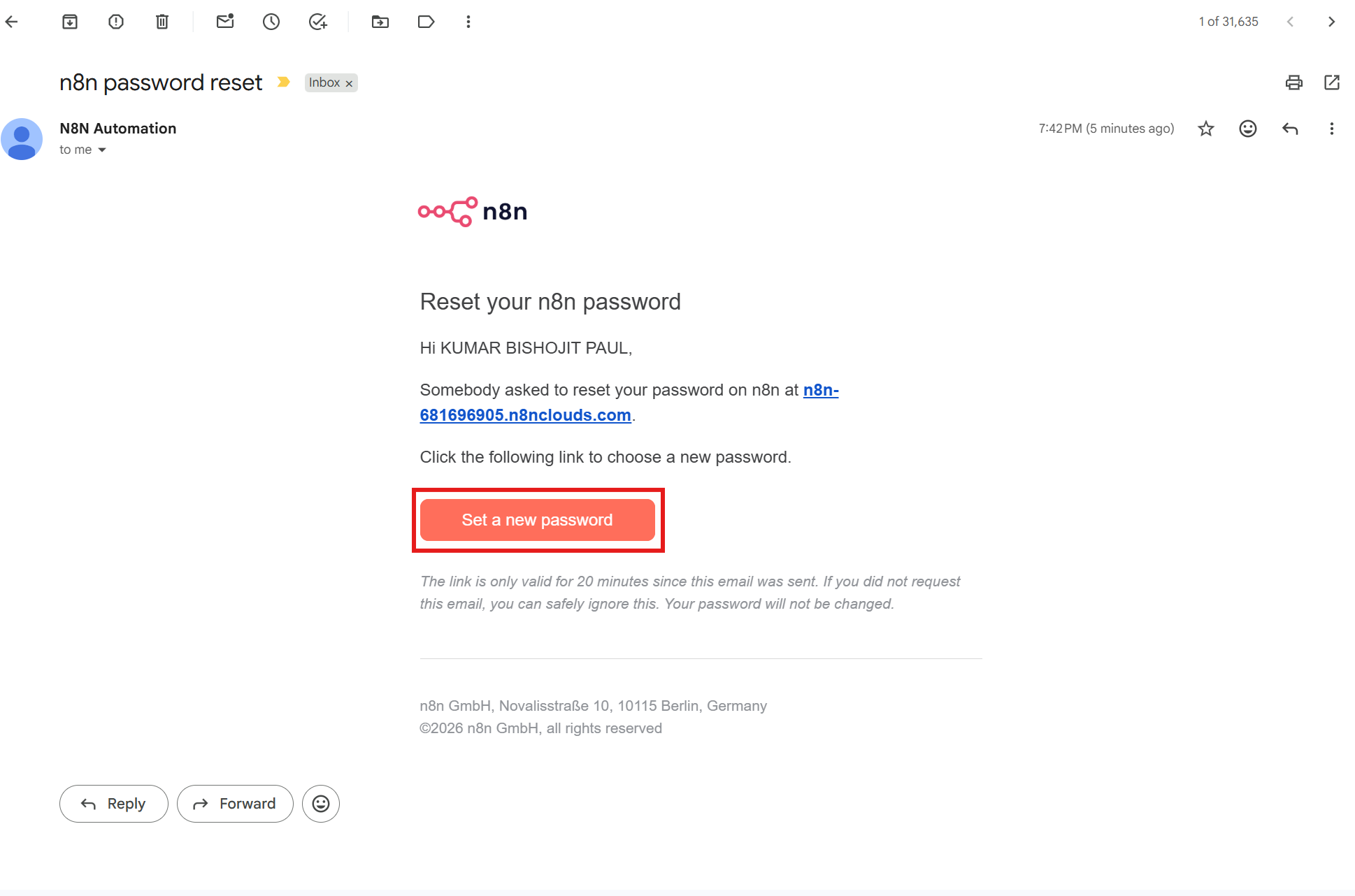
Within a few minutes, you'll receive an email from N8N Automation with the subject "n8n password reset". Open it and click Set a new password.
The link is valid for 20 minutes only. If it expires, repeat from Step 2.
Step 4 — Set Your New Password
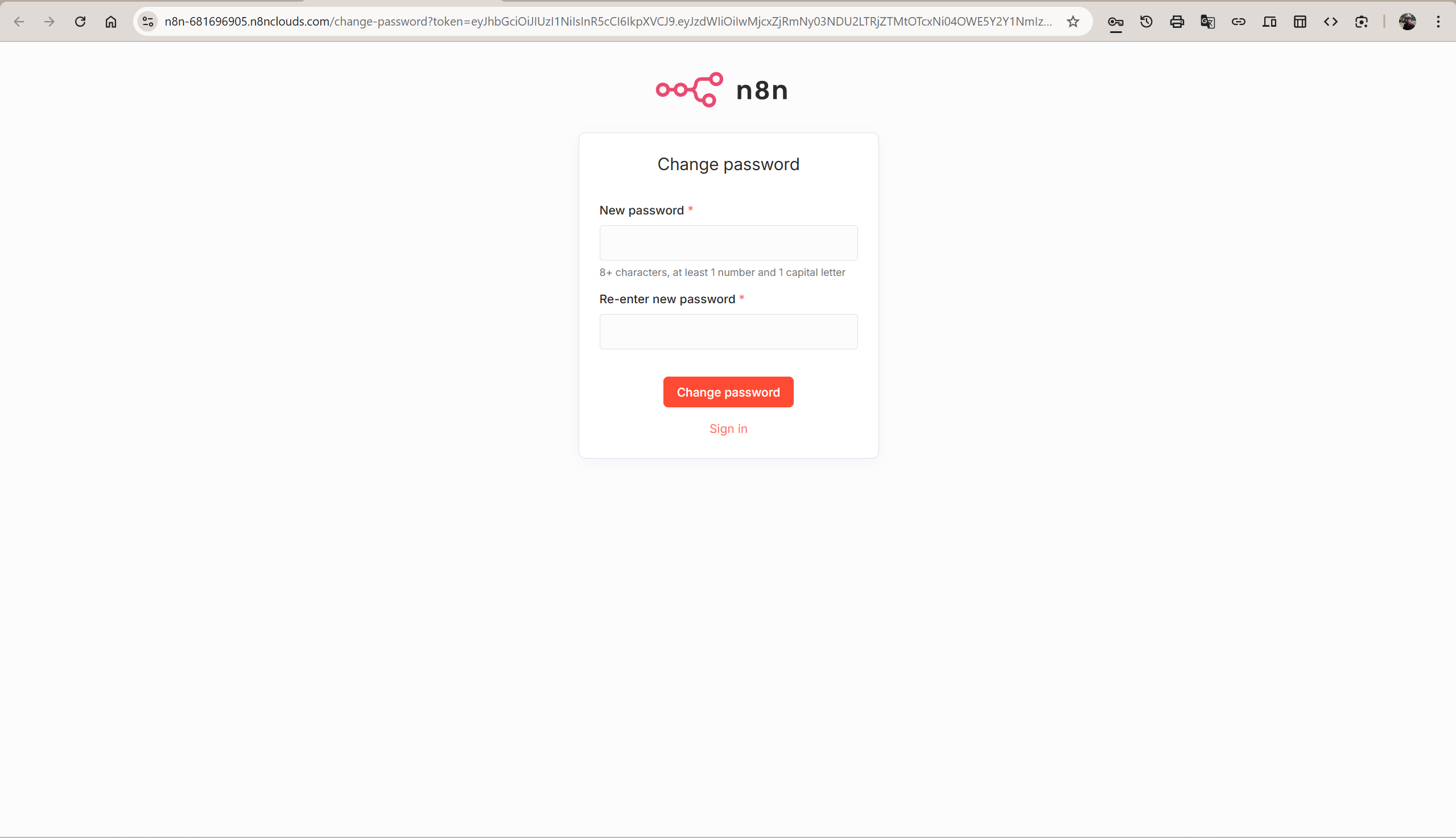
Clicking the link opens the Change Password page on your n8n instance. Enter your desired password (8+ characters, at least 1 number and 1 capital letter), confirm it, then click Change password.
Your password is now updated. Use the new credentials next time you log in to your instance.
Method 2: Use n8n's Built-in Forgot Password
Use this method when you can access your n8n instance URL directly but cannot log in.
Step 1 — Navigate to the Forgot Password Page
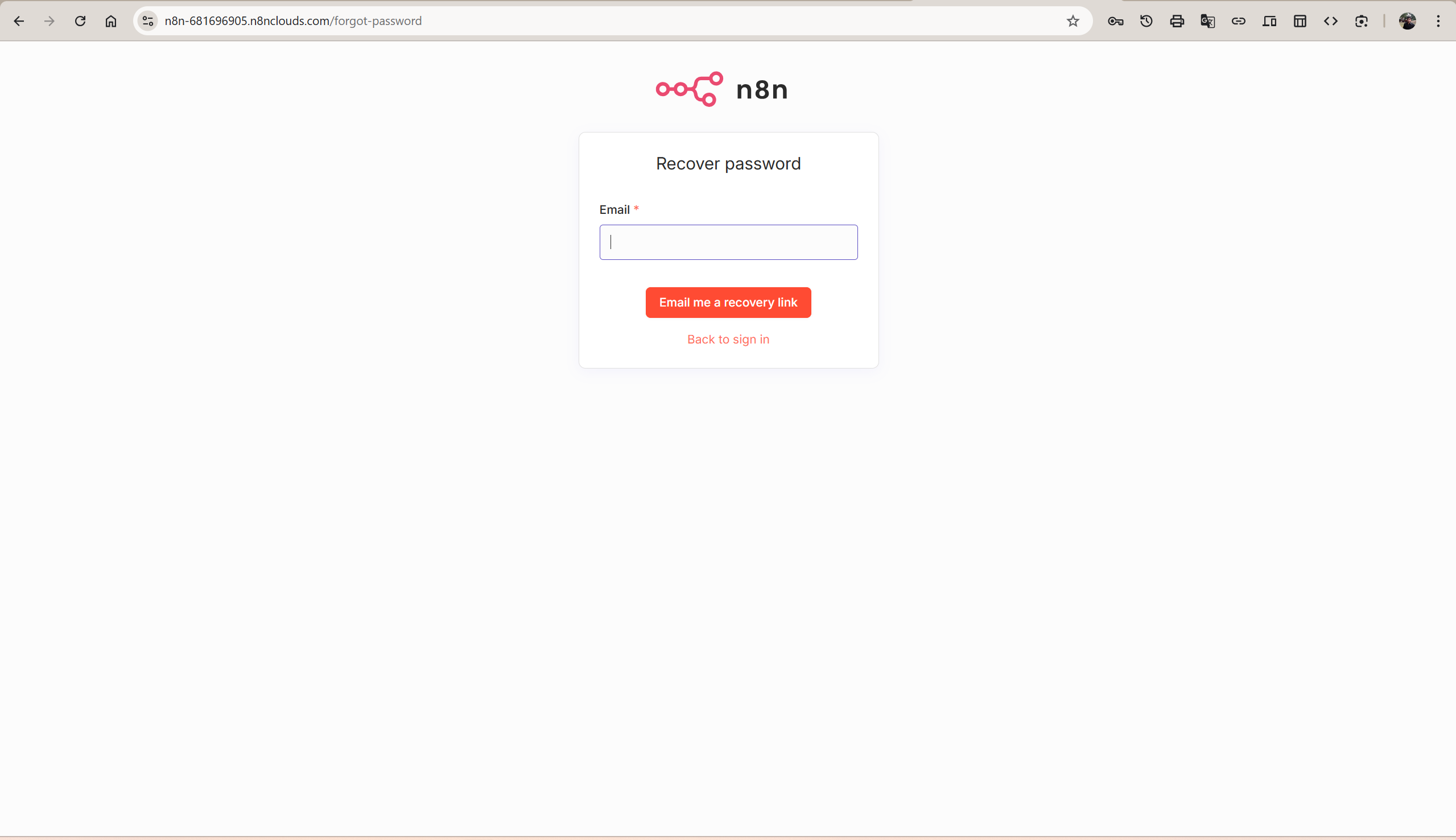
Open your n8n instance URL (for example, https://XXXXXX.n8nclouds.com) and add /forgot-password to the end, or click Forgot password? on the n8n sign-in page.
Step 2 — Enter Your Email and Submit
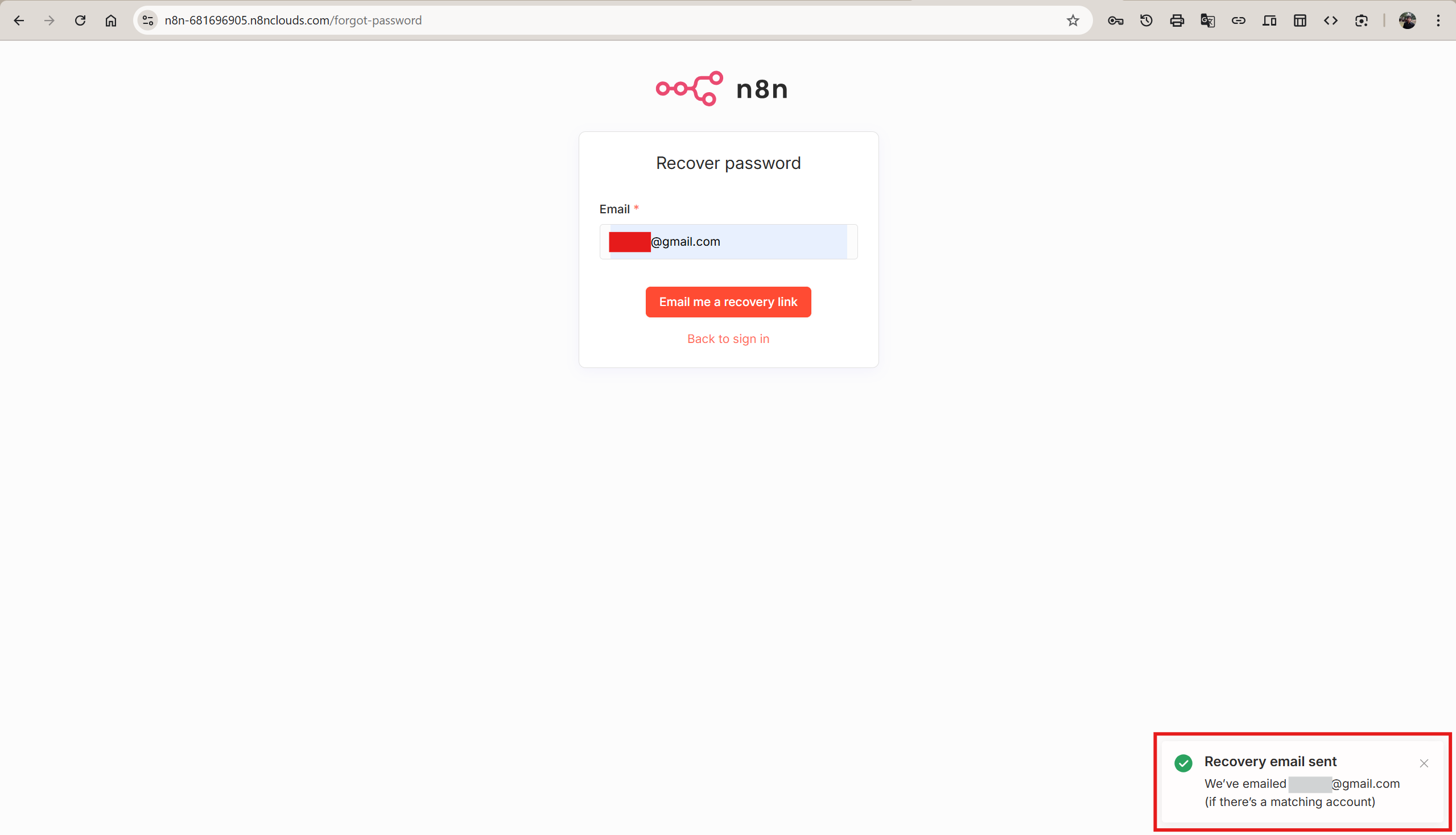
Type your registered email address and click Email me a recovery link. A confirmation notification will appear at the bottom of the screen.
Step 3 — Follow the Email Link
Check your inbox, click the reset link in the email, and set your new password following the same steps as Method 1 → Step 4 above.
Quick Comparison
| Method 1 (Dashboard) | Method 2 (Forgot Password) | |
|---|---|---|
| Requires n8n Clouds login | Yes | No |
| Where to start | Instance Detail page | Your n8n instance URL |
| Best when | You can log in to n8n Clouds | You only have the instance URL |
Both methods are equally secure — choose whichever is more convenient.
Still Having Trouble?
If neither method works, contact our support team. We're available to help you regain access to your instance.