
Your n8n instance handles sensitive data — API credentials, webhook URLs, and automated workflows that can reach external services. Leaving it with default settings is a real risk. This guide walks you through the most impactful security steps you can take right now.
1. Enable Two-Factor Authentication (2FA)
Two-factor authentication (2FA) adds a second verification step at login, so even if your password is compromised, an attacker cannot access your instance without your authenticator device.
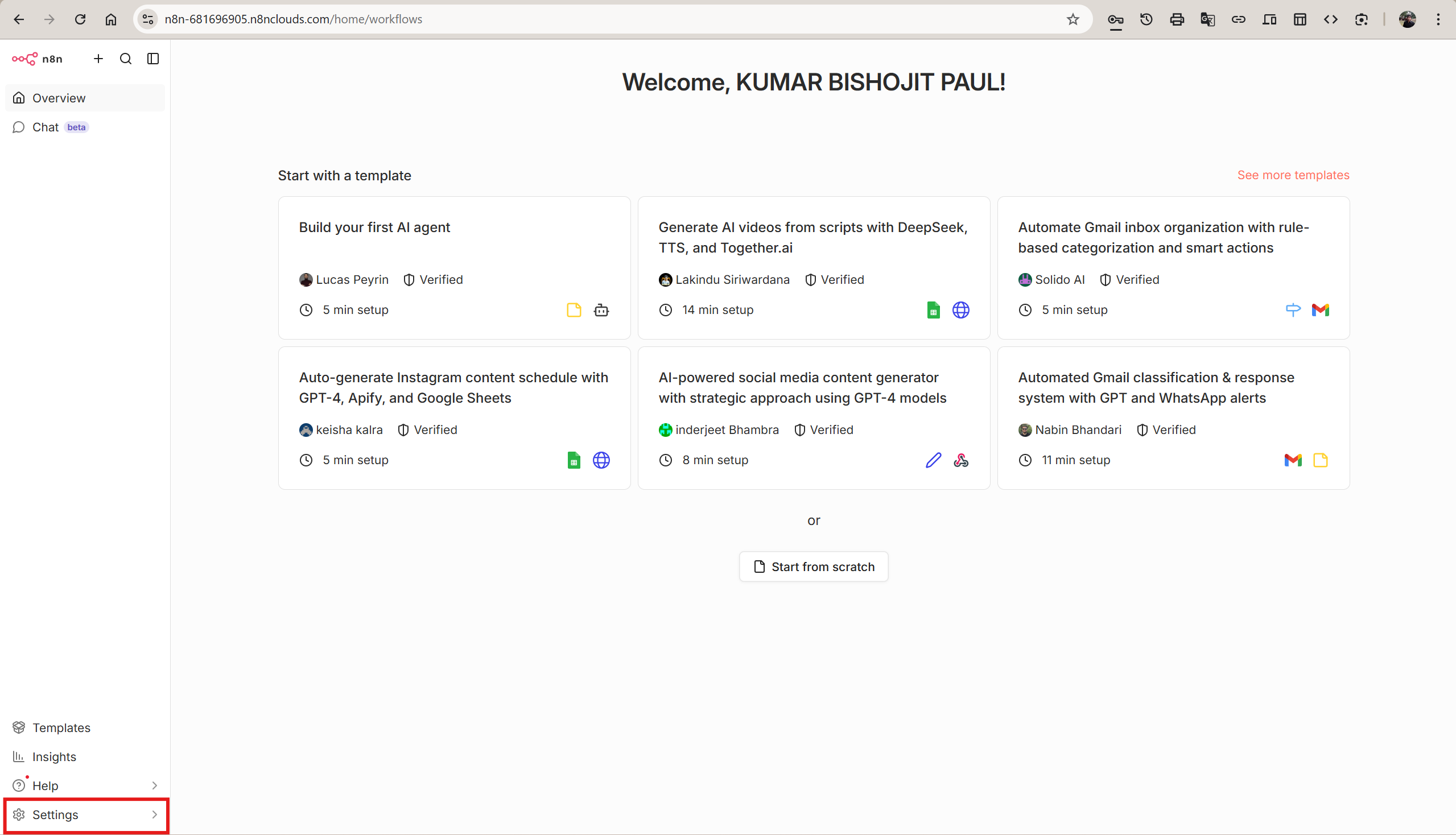
Step 1 — Open Settings
Log in to your n8n instance. In the bottom-left sidebar, click Settings to expand the menu, then select Personal.
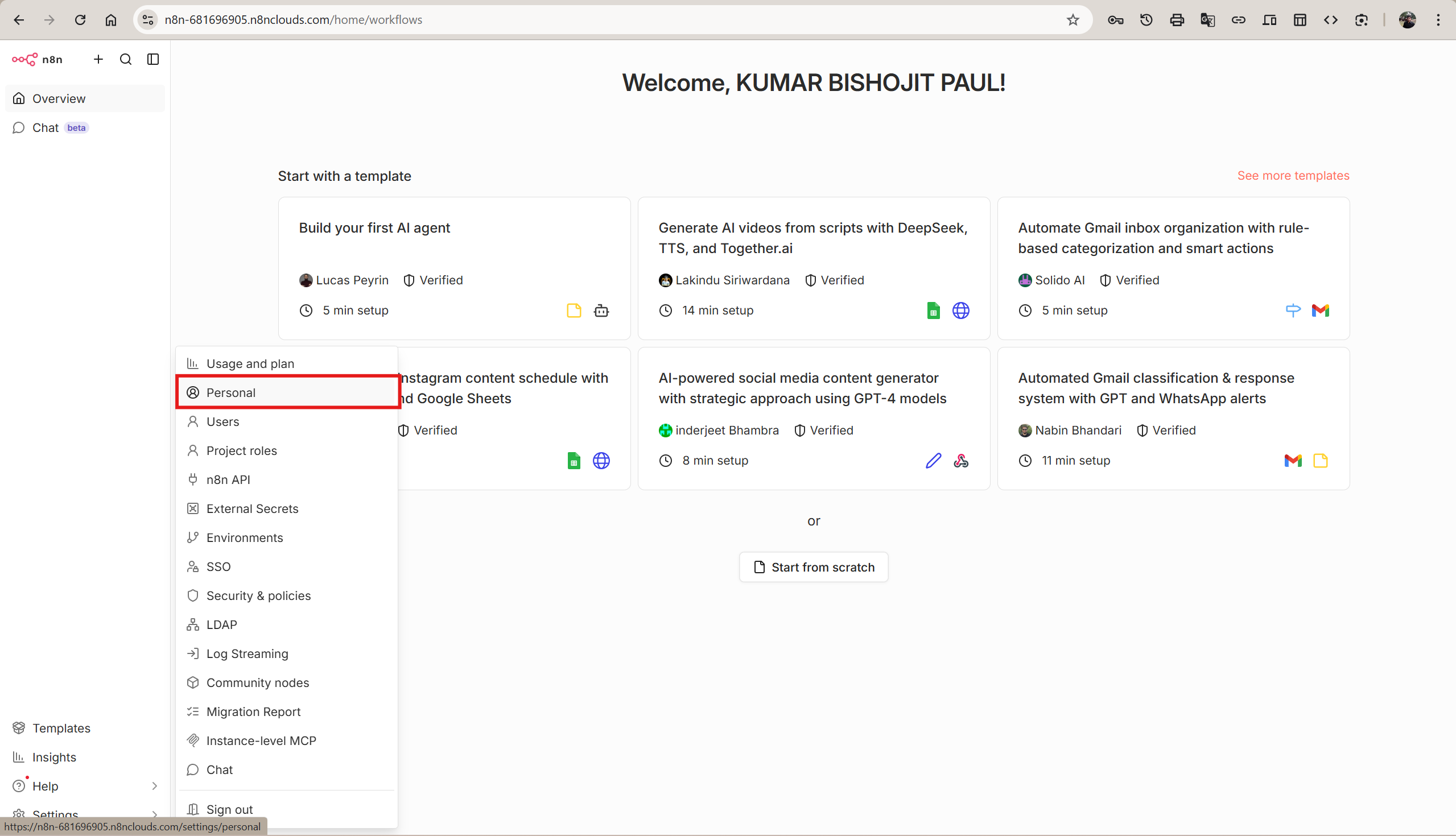
Step 2 — Find the Two-Factor Authentication Section
On the Personal Settings page, scroll down to the Security section. You will see the Two-factor authentication (2FA) area with an Enable 2FA button.
Step 3 — Scan the QR Code
Click Enable 2FA. A setup modal will appear showing a QR code. Open your authenticator app and scan it, then enter the 6-digit code from the app into the Code from your authenticator app field and click Continue.
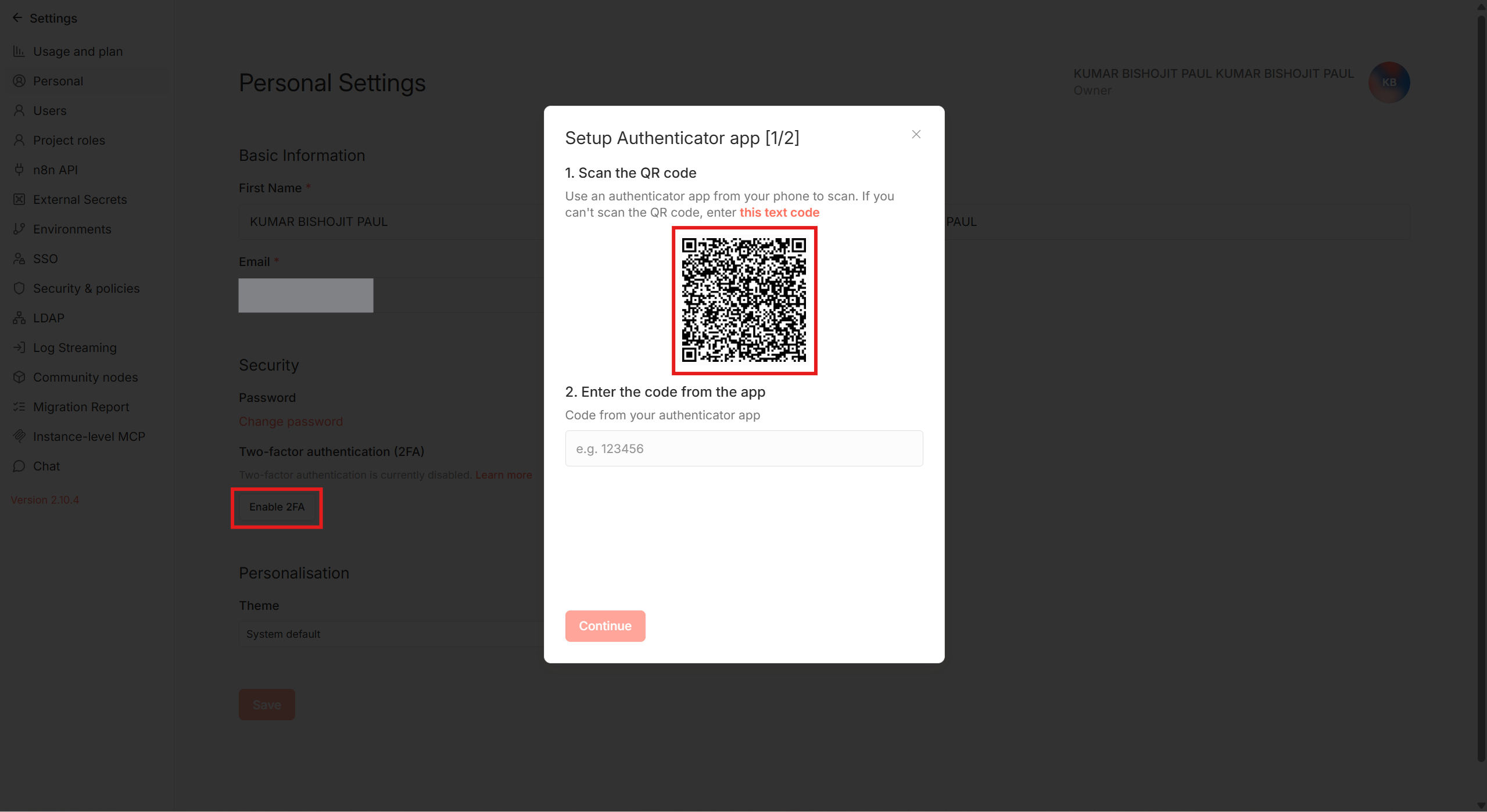
Supported apps: Google Authenticator, Authy, Microsoft Authenticator, 1Password, and any TOTP-compatible app.
Step 4 — Save Your Recovery Codes
After verifying the code, n8n will display 10 one-time recovery codes. Download them immediately by clicking Download recovery codes, then click I have downloaded my recovery codes to proceed.
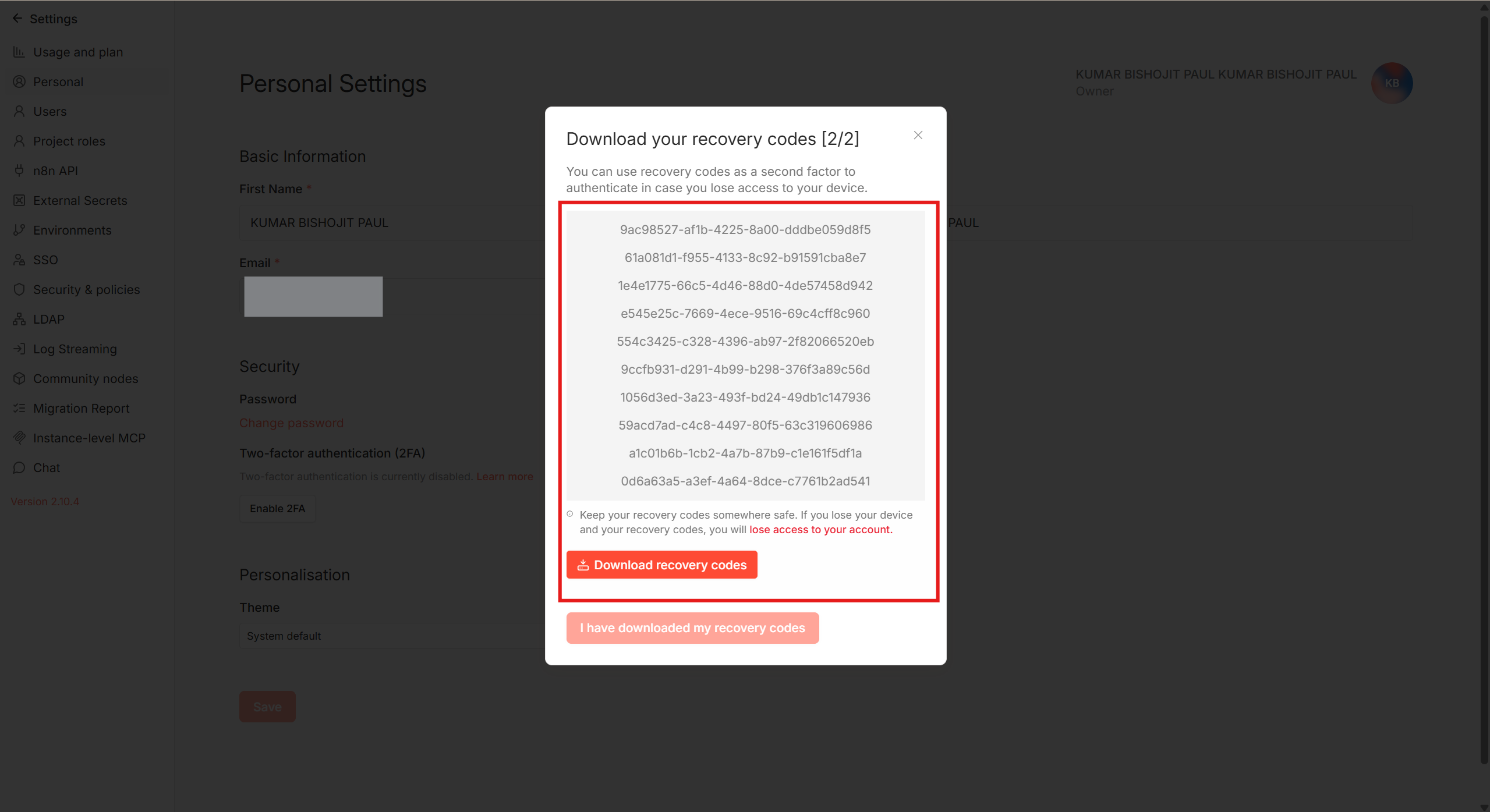
Important: Store your recovery codes in a password manager or another secure location. If you lose your authenticator device and have no recovery codes, you will be permanently locked out of your account.
Step 5 — Confirm 2FA is Active
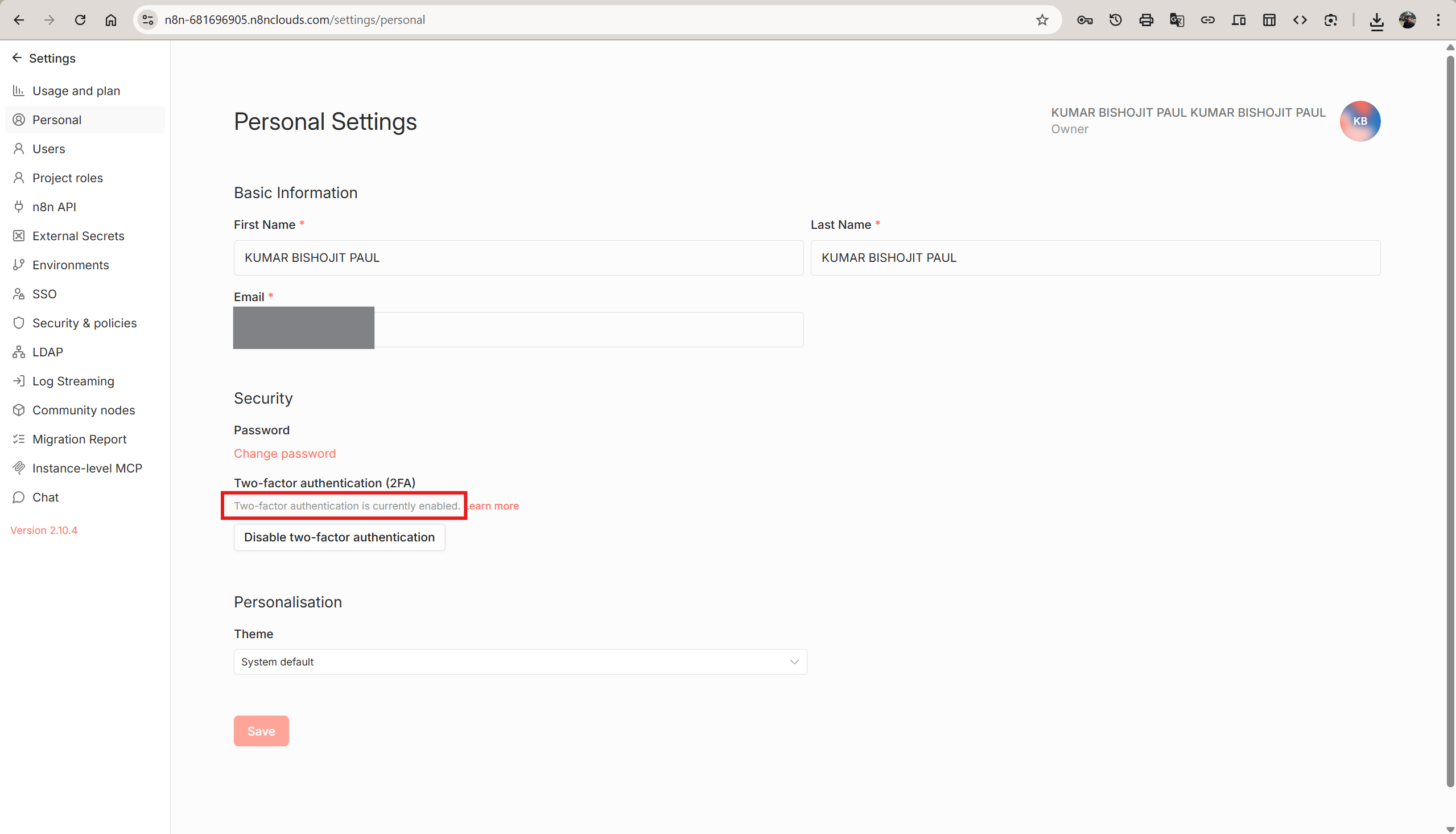
Back on the Personal Settings page, the Two-factor authentication section will now read "Two-factor authentication is currently enabled." You will also see a Disable two-factor authentication button, confirming the setup was successful.
What the Login Flow Looks Like
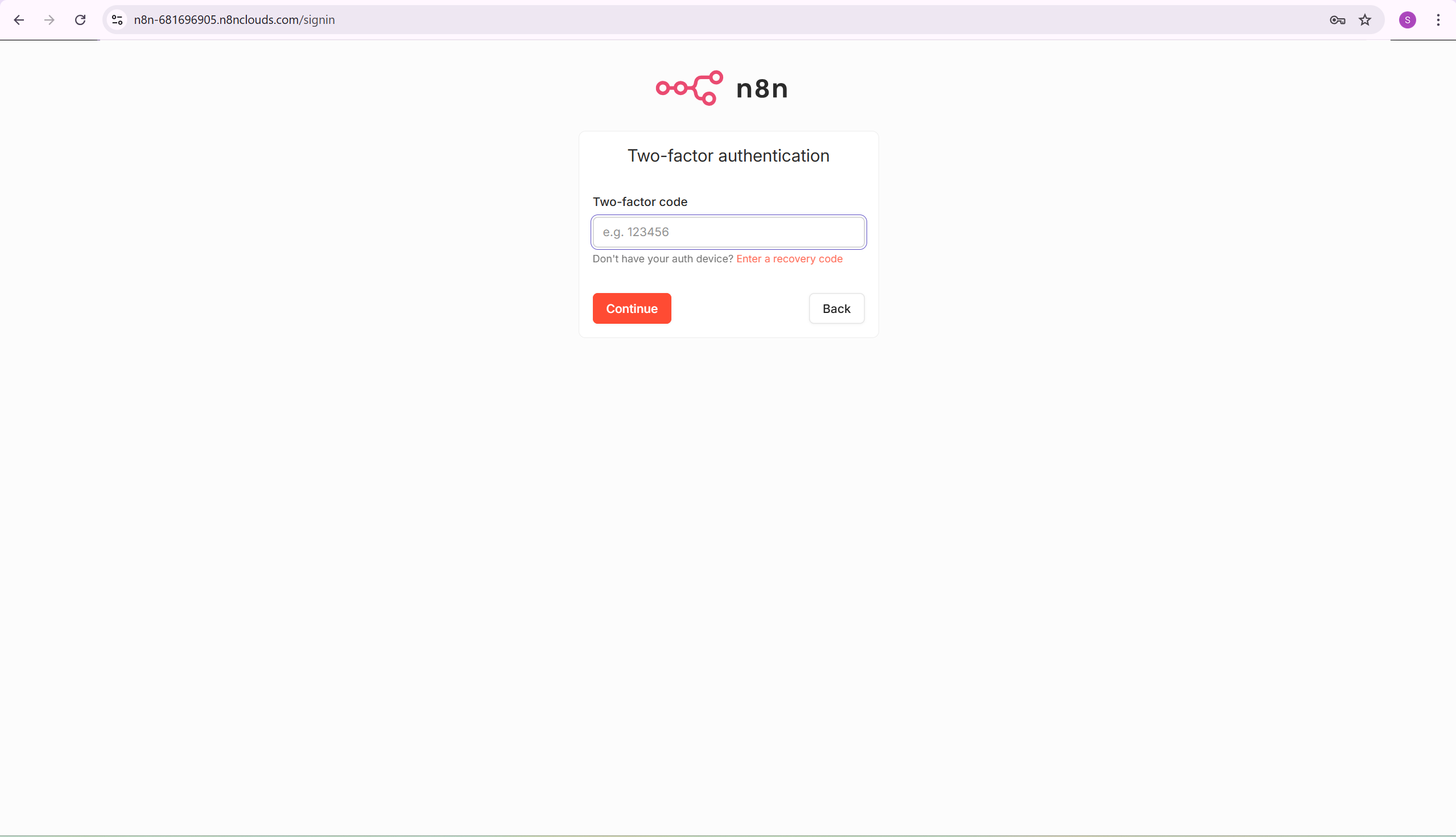
After enabling 2FA, every login will require your password followed by a 6-digit TOTP code from your authenticator app.
2. Use a Strong, Unique Password
2FA is most effective when paired with a strong password. Follow these rules:
- Minimum 12 characters — longer is better
- Mix uppercase, lowercase, numbers, and symbols
- Never reuse a password from another service
- Use a password manager (1Password, Bitwarden, etc.) to generate and store it
If you need to change your current password, navigate to Settings → Personal and click Change password under the Security section.
3. Always Deploy Over HTTPS
Never expose your n8n instance over plain HTTP. HTTP transmits all data — including your credentials and workflow payloads — as unencrypted text, making it trivial to intercept with a man-in-the-middle attack.
What to do:
- Use Cloudflare in front of your instance for automatic HTTPS
- Set up Nginx as a reverse proxy with a Let's Encrypt SSL certificate
- Verify your instance URL begins with
https://before using it in production
On n8n Clouds, all instances are provisioned with HTTPS enabled by default — no configuration needed.
4. Restrict Access with a Firewall and IP Allowlist
Limit who can reach your n8n instance at the network level. Even with strong authentication, reducing the attack surface is always worthwhile.
What to do:
- Configure your server firewall (UFW, iptables, or cloud security groups) to allow inbound traffic only on the necessary ports (typically 443 for HTTPS)
- If your team works from fixed IP addresses, add an IP allowlist so only those addresses can access the instance
- Consider putting your instance behind a VPN so it is not publicly reachable at all
- If you are using Docker, avoid exposing the container port directly on
0.0.0.0— bind it to127.0.0.1and let Nginx proxy inbound traffic
5. Keep Environment Variables and Secrets Secure
n8n is configured through environment variables. Mishandling them is one of the most common ways sensitive credentials get exposed.
What to do:
- Never commit your
.envfile to a Git repository — add it to.gitignore - Use a secrets manager (HashiCorp Vault, AWS Secrets Manager, Doppler) for production environments
- Rotate credentials immediately if you suspect they have been exposed
- Prefer n8n's built-in Credentials store for storing third-party API keys rather than hardcoding them in workflow nodes
6. Control Who Can Sign In
Restrict access to only the people who need it, and keep that list current.
- Invite-only registration: n8n can be configured so new users can only join via email invitation — ensure this is enforced
- Regularly audit the Users list: Navigate to Settings → Users and remove accounts for team members who have left or no longer need access
- Use the principle of least privilege: Assign users only the roles they need (Member vs. Admin)
Each user with access to your instance can view, modify, and execute your workflows and read stored credentials.
7. Back Up Your Instance Regularly
A security incident, accidental deletion, or server failure can wipe your workflows and credentials permanently. Regular backups are your safety net.
What to back up:
- Database: All workflows, credentials, and execution history live here
- Credentials: Export and securely store your n8n credentials
- Workflow exports: Export individual workflows as JSON from the n8n UI
Best practice: Automate daily backups and store them in a separate location from your server (cloud storage bucket, off-site repository).
On n8n Clouds, automated backups are included — your data is protected without any manual steps.
8. Keep Your Instance Up to Date
Security vulnerabilities are regularly patched in n8n releases. Running an outdated version leaves known exploits open.
On n8n Clouds, updates are handled automatically — your instance is always kept on the latest stable version with no action required from you.
If you are self-hosting, schedule regular updates and monitor the n8n changelog for security-related releases.
9. Reduce Your Public Exposure
The more surface area your instance exposes publicly, the more opportunities an attacker has.
- Protect the
/restAPI endpoint: If you are not using n8n's REST API externally, block it at the proxy or firewall level - Use webhook path randomization: Avoid predictable webhook paths; use n8n's default UUID-based paths and do not publish them publicly
- Disable unused workflows: Deactivate any workflow with an active trigger (webhook, cron, etc.) that is no longer in use
- Disable community nodes: If you do not use community nodes, disable them in Settings → Community nodes to reduce the third-party attack surface
10. Monitor Workflow Executions
n8n logs every workflow execution. Use the execution history as an ongoing audit trail:
- Watch for unexpected execution times (e.g., a workflow running at 3 AM that normally runs during business hours)
- Check failed executions for suspicious inputs or unusual trigger sources
- Review credential usage — if a credential is being used by a workflow you did not create, investigate immediately
Go to Executions in the left sidebar to view the full history.
Advanced Security Tips
For higher-security environments, consider these additional hardening measures:
- Reverse proxy with rate limiting: Configure Nginx to rate-limit login attempts and block brute-force attacks
- Fail2ban: Automatically ban IPs with repeated failed login attempts
- Docker isolation: Run n8n in a non-root Docker container and use read-only volume mounts where possible
- Log monitoring: Forward n8n and server logs to a centralized logging service (Datadog, Grafana Loki, or similar) and set up alerts for anomalies
- Regular security audits: Periodically review which workflows have active webhook triggers and which credentials are in use
Security Checklist
Run through this list after initial setup and whenever you add a new team member:
| Task | Done? |
|---|---|
| Two-factor authentication (2FA) enabled | ✅ |
| Strong, unique password set | ✅ |
| Instance deployed over HTTPS | ✅ |
| Firewall configured, unnecessary ports closed | ✅ |
.env file excluded from version control | ✅ |
| All users are current team members only | ✅ |
| Least-privilege roles assigned to all users | ✅ |
| Automated backups configured | ✅ |
| Instance is running the latest version | ✅ |
| Unused workflows deactivated | ✅ |
| Execution history reviewed for anomalies | ✅ |
Still Have Questions?
If you run into any issues or need help securing your instance, contact our support team. We're here to help.