
Running your n8n workflows in the wrong timezone can cause real problems — scheduled tasks fire at the wrong hour, date-based logic produces unexpected results, and logs become difficult to read. This guide shows you exactly how to set the correct timezone on your n8n instance so everything runs on your local time.
Why Timezone Matters in n8n
By default, n8n uses UTC (Coordinated Universal Time). If you are in Dhaka (UTC+6), a workflow scheduled for "9:00 AM" will actually run at 3:00 PM your local time. That six-hour gap can break time-sensitive automations like:
- Daily reports sent to your team at the wrong hour
- Cron-triggered workflows that should run during business hours
- Date comparisons in If/Switch nodes that produce incorrect results
- Webhook responses with timestamps your users cannot interpret
Setting the correct timezone fixes all of these issues at once.
Method 1: Set the Instance-Wide Timezone (Recommended)
The most reliable way to configure timezone is through the GENERIC_TIMEZONE environment variable. This sets the default timezone for your entire n8n instance — every workflow, every node, and every log entry.
Step 1 — Find Your Timezone Identifier
n8n uses IANA timezone identifiers (also called "TZ database names"). Here are the most common ones:
| Region | Timezone Identifier | UTC Offset |
|---|---|---|
| Bangladesh | Asia/Dhaka | UTC+6 |
| India | Asia/Kolkata | UTC+5:30 |
| Singapore | Asia/Singapore | UTC+8 |
| Japan | Asia/Tokyo | UTC+9 |
| UAE | Asia/Dubai | UTC+4 |
| UK | Europe/London | UTC+0/+1 |
| Germany | Europe/Berlin | UTC+1/+2 |
| US East | America/New_York | UTC-5/-4 |
| US West | America/Los_Angeles | UTC-8/-7 |
| Australia (East) | Australia/Sydney | UTC+10/+11 |
Full list: See the IANA Time Zone Database for all valid identifiers. Always use the exact format shown (e.g.,
Asia/Dhaka, notBSTorGMT+6).
Step 2 — Set the Environment Variable
How you set GENERIC_TIMEZONE depends on how you run n8n.
Option A: Docker (docker-compose.yml)
Open your docker-compose.yml file and add the GENERIC_TIMEZONE variable under the environment section:
services:
  n8n:
    image: n8nio/n8n
    environment:
      - GENERIC_TIMEZONE=Asia/Dhaka
      - TZ=Asia/Dhaka
    ports:
      - "5678:5678"
    volumes:
- n8n_data:/home/node/.n8nImportant: Set both
GENERIC_TIMEZONE(used by n8n) andTZ(used by the underlying operating system inside the container). This ensures timestamps are consistent everywhere.
After saving the file, restart your container:
docker compose down
docker compose up -d
Option B: Docker Run Command
If you start n8n with a single docker run command, add the -e flags:
docker run -d \
  --name n8n \
  -p 5678:5678 \
  -e GENERIC_TIMEZONE=Asia/Dhaka \
  -e TZ=Asia/Dhaka \
  -v n8n_data:/home/node/.n8n \
  n8nio/n8n
Option C: .env File
If you use a .env file alongside your Docker setup or systemd service, add these lines:
GENERIC_TIMEZONE=Asia/Dhaka
TZ=Asia/Dhaka
Then reference the file in your docker-compose.yml:
services:
  n8n:
    image: n8nio/n8n
    env_file:
      - .env
Option D: npm / Direct Installation
If you installed n8n globally with npm, set the environment variables before starting:
Linux / macOS:
export GENERIC_TIMEZONE=Asia/Dhaka
export TZ=Asia/Dhaka
n8n start
Windows (PowerShell):
$env:GENERIC_TIMEZONE = "Asia/Dhaka"
$env:TZ = "Asia/Dhaka"
n8n start
For a permanent setup, add these variables to your shell profile (
~/.bashrc,~/.zshrc) or system environment variables on Windows.
Step 3 — Restart Your n8n Instance
After setting the environment variables, restart your n8n instance for the changes to take effect. The timezone setting is read at startup and does not update while n8n is running.
Step 4 — Verify the Timezone
Open your n8n instance and check that the timezone is applied:
- Create or open any workflow
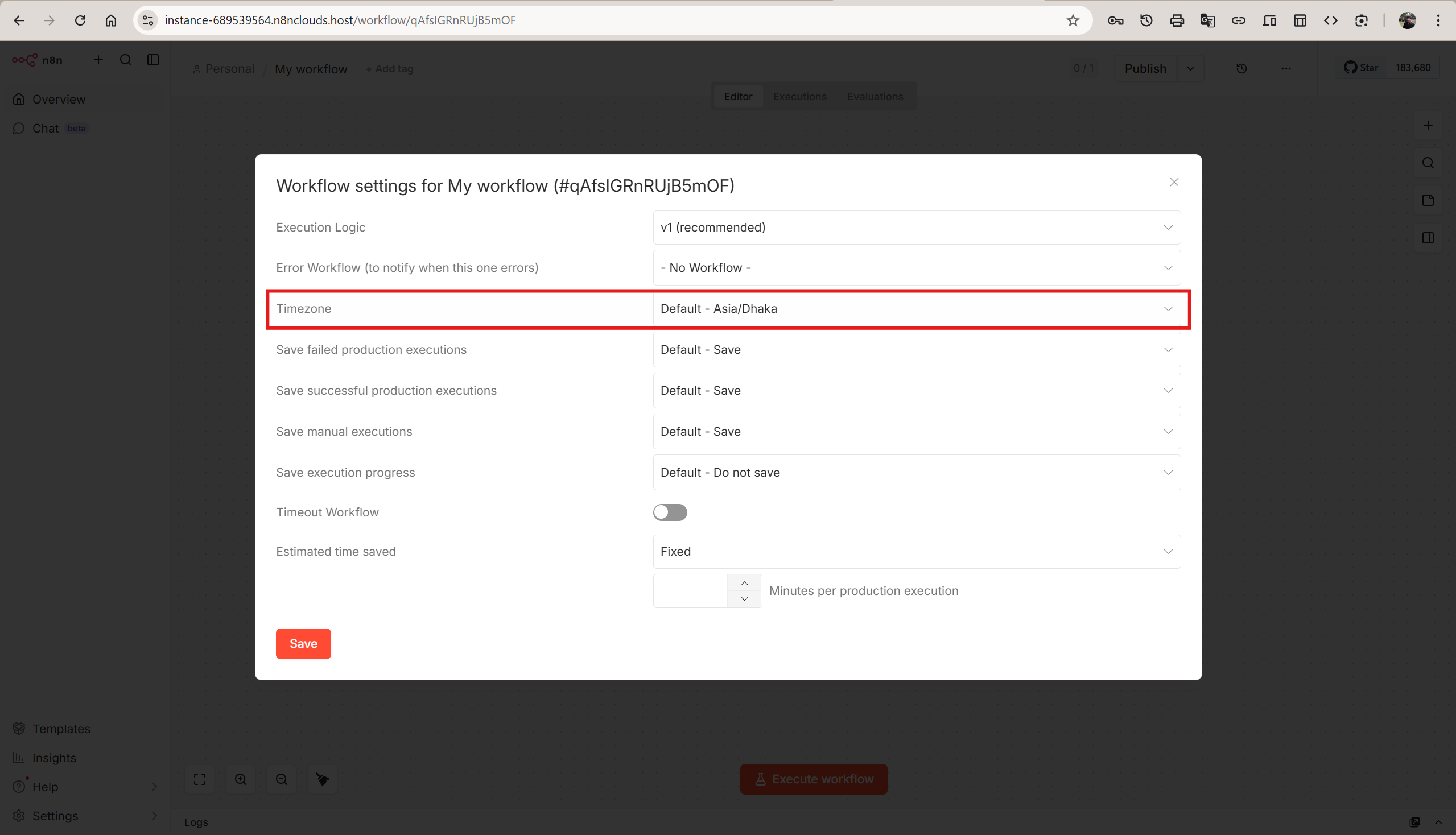
- Click the three-dot menu (⋯) in the top-right and open Settings
- In Workflow settings, confirm the Timezone field shows your expected value (for example,
Default - Asia/Dhaka)
You can also verify by creating a quick test workflow:
- Add a Schedule Trigger node
- Open the node settings
- Confirm the trigger execution aligns with the workflow timezone
In newer n8n versions, the Personal settings page may not show a timezone field. Workflow Settings → Timezone and execution timestamps are the most reliable way to verify your configuration.
Method 2: Set Timezone Per Workflow
If you need different timezones for different workflows — for example, one workflow serves customers in Tokyo and another serves London — you can override the default timezone at the workflow level.
Step 1 — Open Workflow Settings
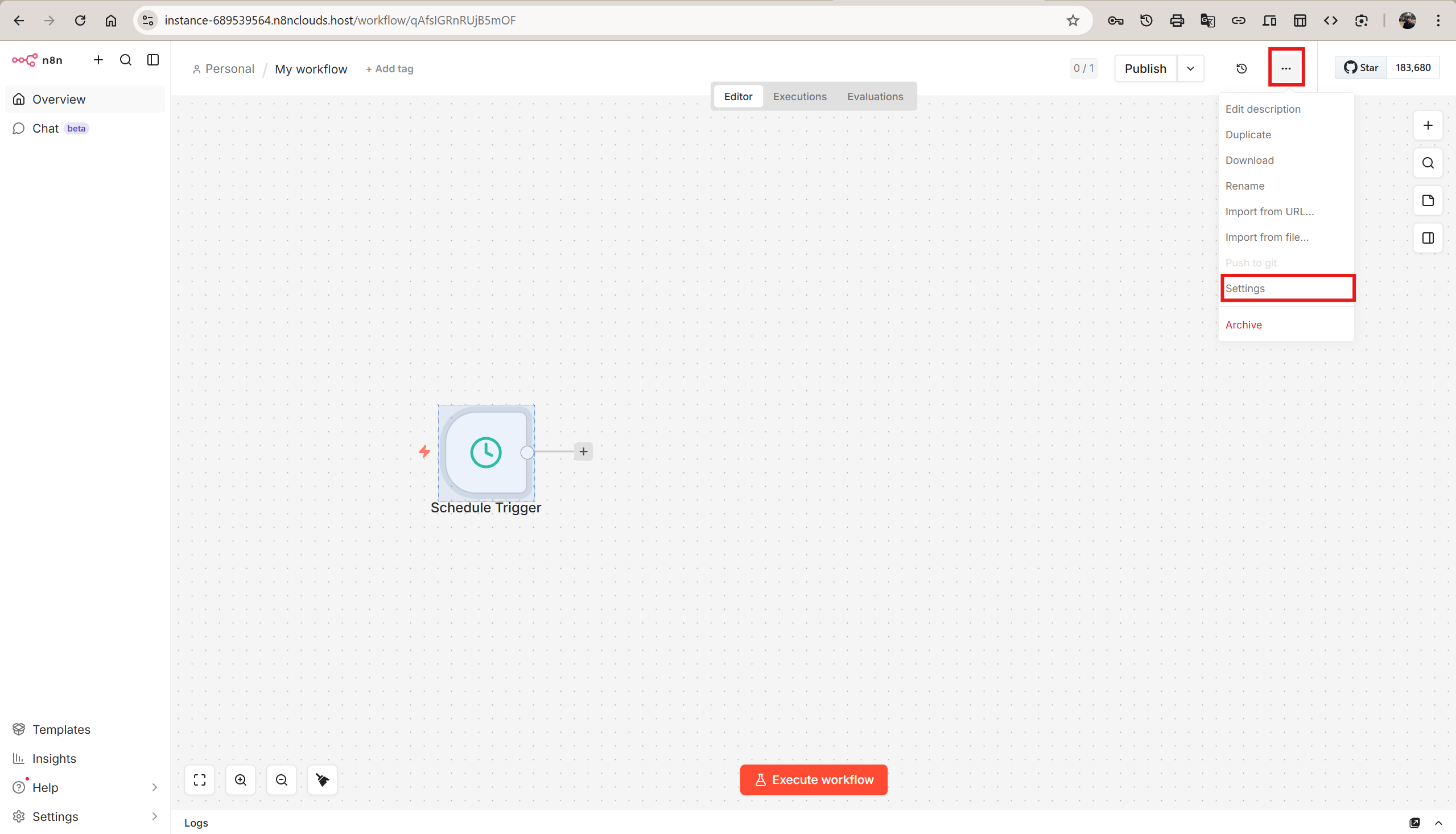
In the workflow editor, click the three-dot menu (⋯) in the top-right corner and select Settings.
Step 2 — Change the Timezone
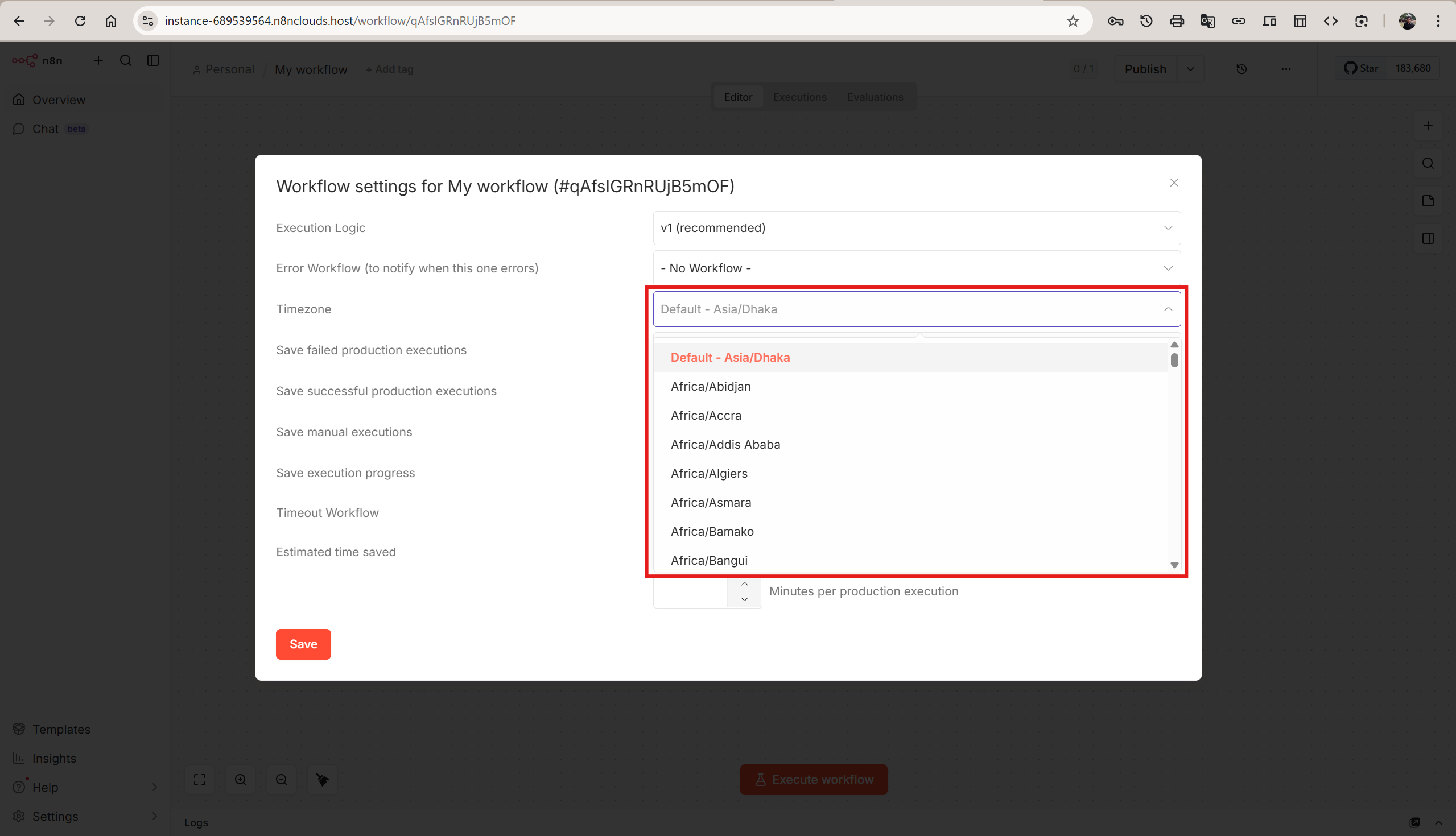
In the workflow settings panel, find the Timezone dropdown. Select the timezone you want for this specific workflow.
Step 3 — Save the Workflow
Click Save to apply the changes. This workflow will now use its own timezone, regardless of the instance-wide setting.
Note: The workflow-level timezone only affects this specific workflow. All other workflows continue to use the instance default.
Timezone Priority — How n8n Decides Which Timezone to Use
n8n follows a clear priority order when determining the timezone for any operation:
| Priority | Level | Set By |
|---|---|---|
| 1 (High) | Workflow-level timezone | Workflow Settings → Timezone |
| 2 (Low) | Instance-level timezone | GENERIC_TIMEZONE env variable |
| Fallback | UTC | Default when nothing is configured |
In practice: Set GENERIC_TIMEZONE once to your local timezone, and override at the workflow level only when you have a specific reason.
For n8n Clouds Users
If you are using n8n Clouds, you do not need to edit Docker files or environment variables manually. The timezone is configured through your instance-level settings in the dashboard.
How to Set Timezone on n8n Clouds
- Log in to your n8n Clouds dashboard
- Open your instance detail page
- Go to instance Settings or Configuration
- Set the timezone using an IANA value (for example,
Asia/Dhaka) and save
If your current dashboard view does not show a timezone field, check the instance configuration area first, then contact support to apply it at the instance level.
<!--  -->After updating, your instance will restart automatically with the new timezone applied.
Default timezone: New instances on n8n Clouds are provisioned with UTC by default. We recommend changing it to your local timezone immediately after setup.
Common Timezone Issues and Fixes
Issue 1: Schedules Still Running on UTC After Setting Timezone
Cause: You set GENERIC_TIMEZONE but did not restart n8n.
Fix: Restart your n8n instance. The timezone is loaded at startup.
Issue 2: One Workflow Uses the Wrong Timezone
Cause: That workflow has its own timezone set in Workflow Settings, which overrides the instance default.
Fix: Open the workflow → Settings → Change or reset the Timezone dropdown.
Issue 3: Timestamps in Logs Show the Wrong Time
Cause: The TZ environment variable is not set (only GENERIC_TIMEZONE is configured).
Fix: Set both GENERIC_TIMEZONE and TZ to the same value. GENERIC_TIMEZONE controls n8n's internal behavior, while TZ controls the operating system's time.
Issue 4: Using Incorrect Timezone Format
Cause: Using abbreviations like BST, IST, or GMT+6 instead of IANA identifiers.
Fix: Always use the full IANA format: Asia/Dhaka, not BST or GMT+6. Abbreviations are ambiguous (e.g., IST could mean India, Israel, or Ireland Standard Time).
Issue 5: Timezone Option Not Visible in Personal Settings
Cause: In newer n8n builds, the Personal page may not expose a timezone field.
Fix: Use Workflow Settings → Timezone to verify or override timezone. On n8n Clouds, configure timezone from your instance-level dashboard settings.
Quick Reference: Timezone Configuration Commands
Here is a summary of the commands for each deployment method:
Docker Compose
environment:
  - GENERIC_TIMEZONE=Asia/Dhaka
  - TZ=Asia/Dhaka
Docker Run
-e GENERIC_TIMEZONE=Asia/Dhaka -e TZ=Asia/Dhaka.env File
GENERIC_TIMEZONE=Asia/Dhaka
TZ=Asia/Dhaka
npm (Linux/macOS)
export GENERIC_TIMEZONE=Asia/Dhaka && export TZ=Asia/Dhaka && n8n startReplace
Asia/Dhakawith your own timezone identifier from the IANA timezone list.
Still Have Questions?
If you run into any issues or need help configuring timezone on your instance, contact our support team. We're here to help.